
The Microsoft Outlook app is the recommended way to access your Office 365 email and calendar on an Android device. Outlook is compliant with Stanford’s information security requirements provided that your device is enrolled in Mobile Device Management (MDM)/AirWatch.
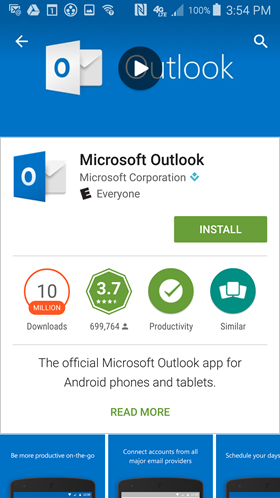
- On your mobile device, go to the Google Play Store and install the Microsoft Outlook app.
- Open the app after it is installed.
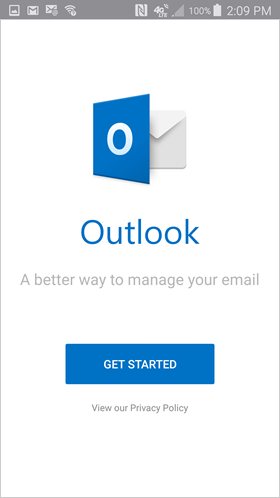
- Tap Get Started.
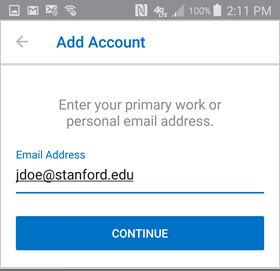
- Enter your @test.com email address and then tap Continue. NO PASSWORD IS REQUIRED AT THIS POINT.
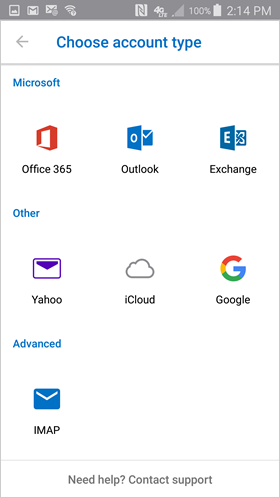
- When prompted to choose an account type, tap Office 365.
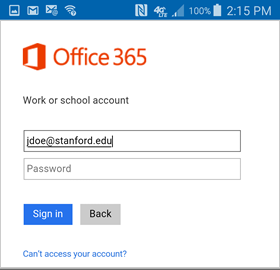
- Enter your @test.com email address and tap Sign In. Do not enter your SUNet ID password .
- If the WebLogin screen displays, enter your SUNet ID and password and tap Login. Two-step authentication may also be required.
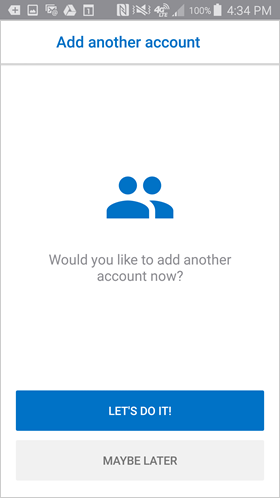
- You have the option to add another account. Tap Maybe Later to proceed to your Office 365 email in Outlook.
- A few screens of help text are presented, which you can read or skip. Your Office 365 Inbox then displays.