
OVERVIEW
I recently had a need to delete a phishing email that had slipped through my emailing filter solution. Manually deleting the email from hundreds of mailboxes wouldn’t have been fun or quick so I can came up the below solution.
The Office 365 Content Search feature can be used to search Exchange, Skype and SharePoint amongst other things. In my case I wanted to search and delete all exchange email delivered after a certain date with a specific keyword in the subject.
STEP 1: CREATING THE CONTENT SEARCH RULE
- Head over to https://protection.office.com
- Expand Search & Investigation => Content Search and click the plus icon to create a “New Search” rule
SEARCH QUERY SECTION – WHERE WE DEFINE WHAT EMAIL(S) WE WANT TO DELETE
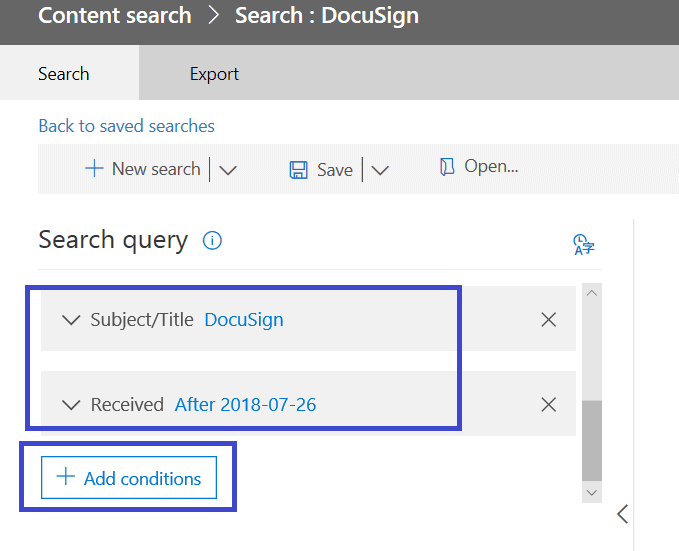
- In the “Search query” section click the “Add conditions” button (you may have to scroll down)
- Add the condition(s) relevant to what you are searching for. In my case emails which contain the string “DocuSign” in the subject that were received after a certain date.
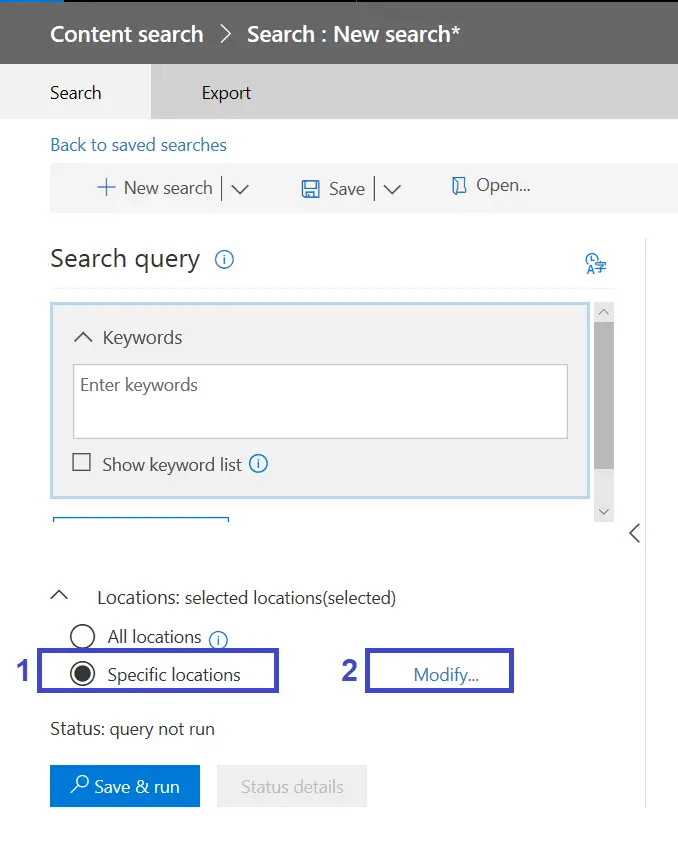
LOCATIONS SECTION – WE ONLY WANT TO SEARCH EXCHANGE
- Under the Location section select “Specific Locations” and click the “Modify” button
- Only enable the Exchange section.

- Click Save in the Modify Locations section
FINISHING THE RULE
- Click “Save & Run” on the New search section
- Give the rule a name and a description if desired and click Save
- At this point the search will run. It is very important you take a good look to confirm only the email(s) you want to delete are returned.
STEP 2: DELETING THE MATCHED EMAILS VIA POWERSHELL
1. CONNECTING TO THE SECURITY AND COMPLIANCE CENTER
1. $UserCredential = Get-Credential
2. $Session = New-PSSession -ConfigurationName Microsoft.Exchange -ConnectionUri https://ps.compliance.protection.outlook.com/powershell-liveid/ -Credential $UserCredential -Authentication Basic -AllowRedirection
3. Import-PSSession $Session
2. DELETING THE EMAILS MATCHING THE CONTENT SEARCH RULE
New-ComplianceSearchAction -SearchName “2019807-DELETE” -Purge -PurgeType SoftDelete

STEP 3: CHECKING THE STATUS
Using the below command you can get a summary of the status of the action;
New-ComplianceSearchAction

Or you can get a detailed output for the action using the below;
Get-ComplianceSearchAction -Identity “NS – ALL: BIM 360 – UPDATE” | Format-List
REFERENCES
Run a Content Search in the Office 365 Security & Compliance Center