
1. Be an Administrator
Make sure you run Outlook as an Administrator when you enable the add-in (Right-click – Run as Administrator)
2. Force Outlook to always enable the add-in
When using CRM for Outlook, users can force the add-in to always be enabled.
On the File tab, click <Slow and Disabled COM Add-ins>.
You’ll see a list of add-ins. Click Always enable this add-in.

3. Changing the Load Behavior
If you have tried the solution referenced above and the add-in is still not loading when the application is opened, then it may be due to a registry setting. This registry setting determines how the add-in is loaded in the application. Follow the steps below to correct this registry setting.
Under Add-ins in Outlook, you will see the current load behavior of the particular add-in. The load behavior of the add-in should be set to “Load at Startup” like this:
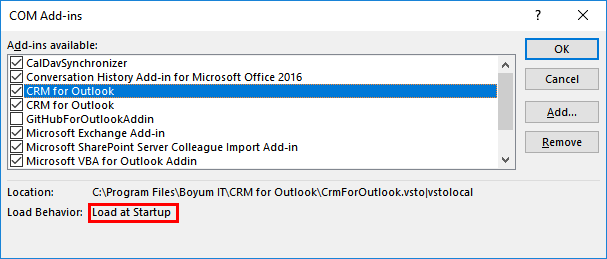
If instead the load behavior is “Unloaded” like this:
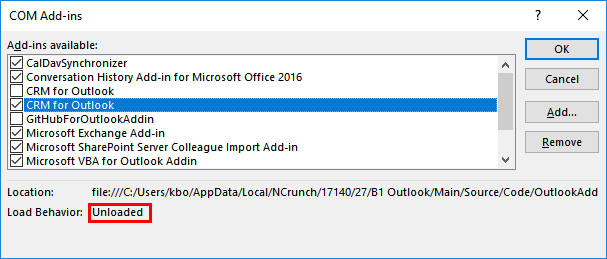
Then follow these steps:
- Open your Registry Editor. To do this, open your Windows Start menu and type “regedit”.
- Go to HKEY_CURRENT_USER\Software\Microsoft\Office\Outlook\Addins\Boyum IT.CRM for Outlook
- Note what the LoadBehavior is set to. It will be a number like 0 or 1 or 3.
If the LoadBehavior key is anything other than “3” then follow these steps:
- Close Outlook (and all other Office programs to be sure). Make sure the “OUTLOOK.EXE” process is not running in the Windows Task Manager
- Open the registry editor again. Double-click the registry key to edit it.
- Change the Load Behavior to “3.” Close the registry editor.
- Re-open the registry editor to ensure “3” is still there.
- Open Outlook. The add-in should now load automatically at startup
See this MSDN article or more information about the LoadBehavior values: https://msdn.microsoft.com/en-us/library/bb386106.aspx#LoadBehavior
4. Add-in Resiliency
If changing the LoadBehavior key still does not resolve it, there is another registry key you can adjust:
Microsoft keeps track of what it decides are problematic add-ins in the registry via the Resiliency key. The path to this key varies by Office version:
Office 2016: HKEY_CURRENT_USER\SOFTWARE\Microsoft\Office\16.0\Outlook\Resiliency
Office 2013: HKEY_CURRENT_USER\SOFTWARE\Microsoft\Office\15.0\Outlook\Resiliency
Office 2010: HKEY_CURRENT_USER\SOFTWARE\Microsoft\Office\14.0\Outlook\Resiliency
In general, you should look in the latest number present in your registry for your latest Office installation.
If Office thinks an add-in has an issue it will ask the user if they want to disable the add-in. If the user clicks Yes then it will be added to the DisabledItems key:
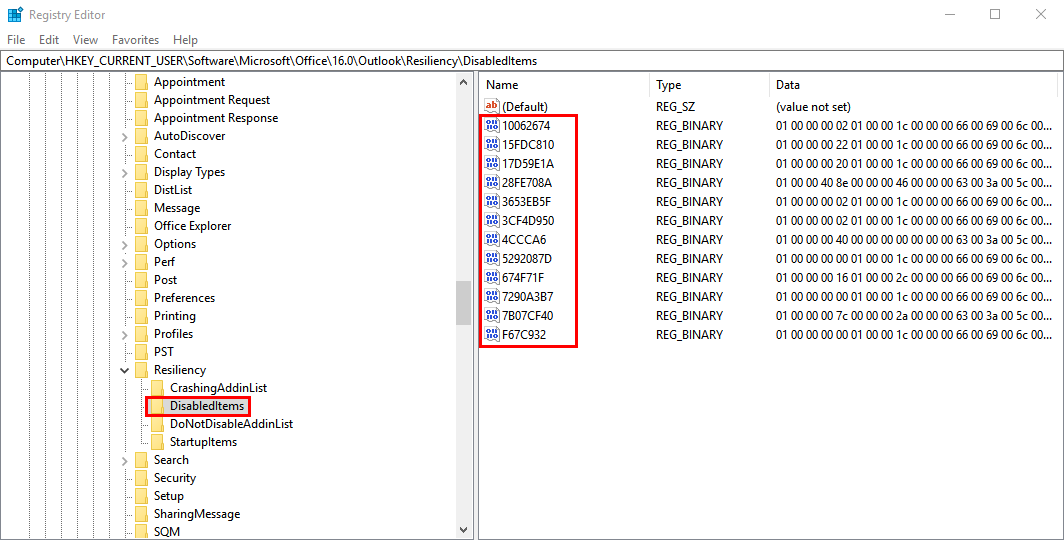
Once an add-in has been placed in the DisabledItems key, Office will not let the add-in load by default. To solve this first make sure Outlook is closed and then delete all the keys in “DisabledItems” (but remember this will re-enable every disabled add-in).
Then to prevent Outlook from disabling the add-in again it must be added to the DoNotDisableAddinList:
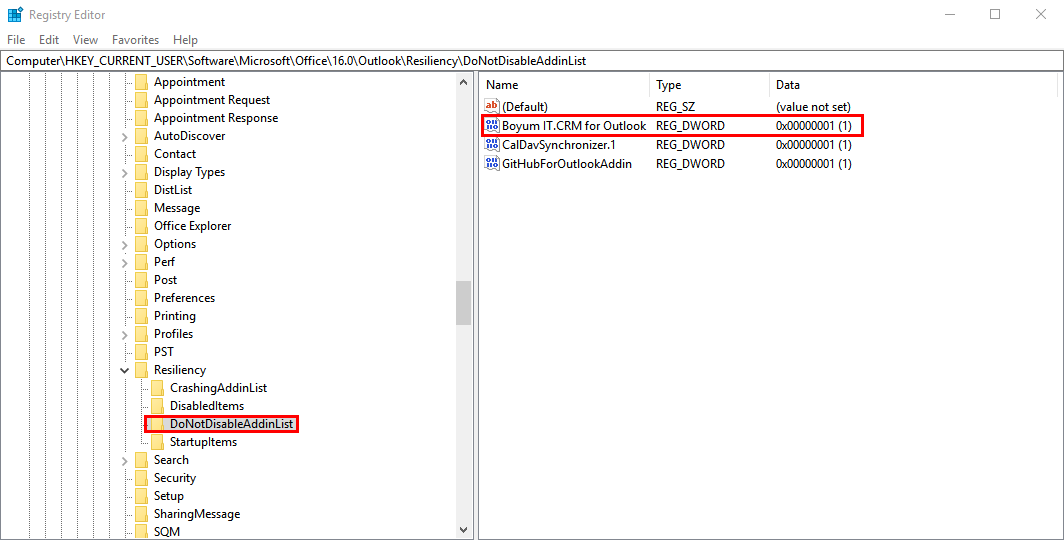
You must add a DWORD value to this key with the name of “Boyum IT.CRM for Outlook” and value of “1” as shown in the screenshot above.
Then start Outlook again and the add-in should start.